Mon, Oct 26, 2026
Booking pages have a new design
Highlights
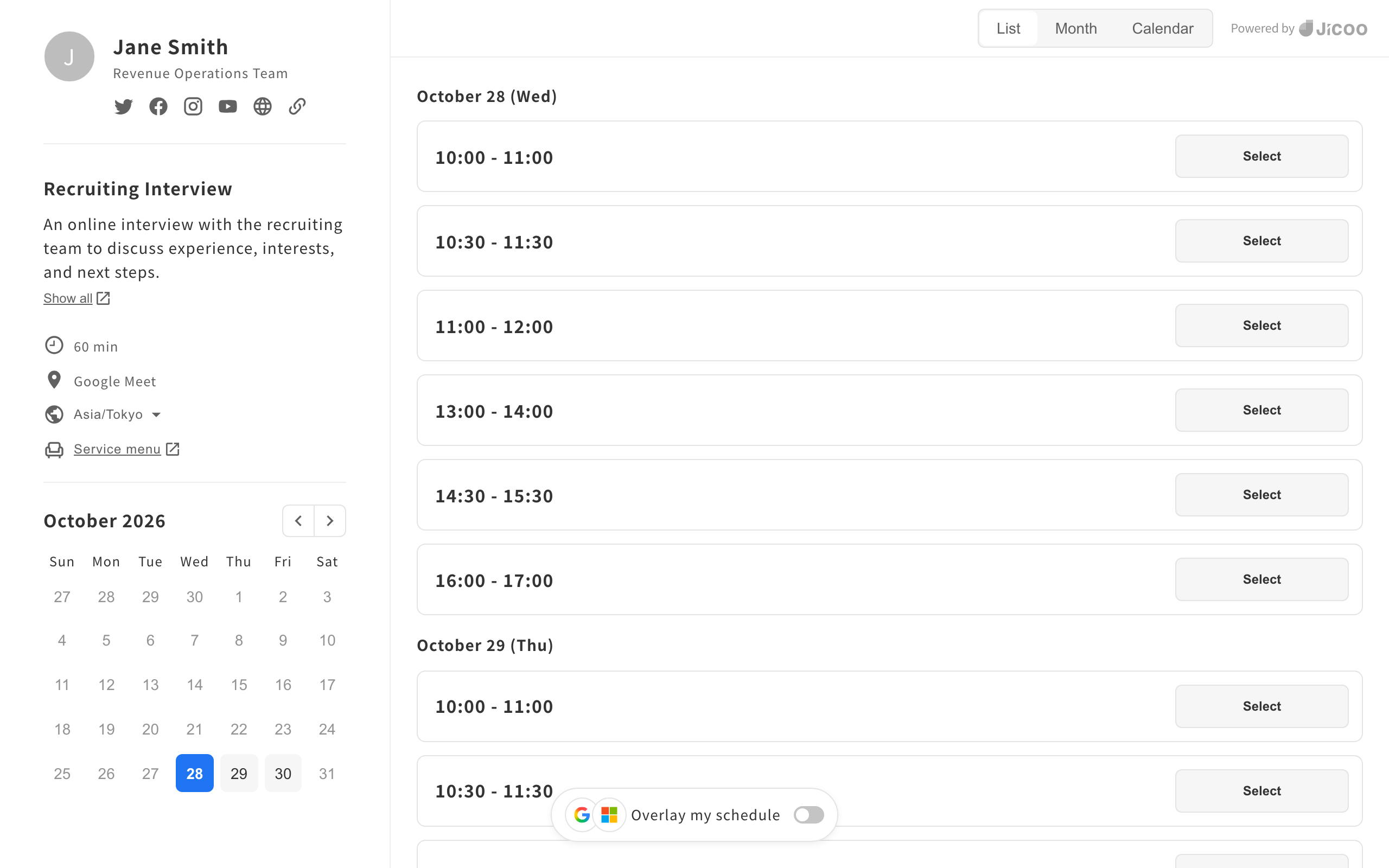
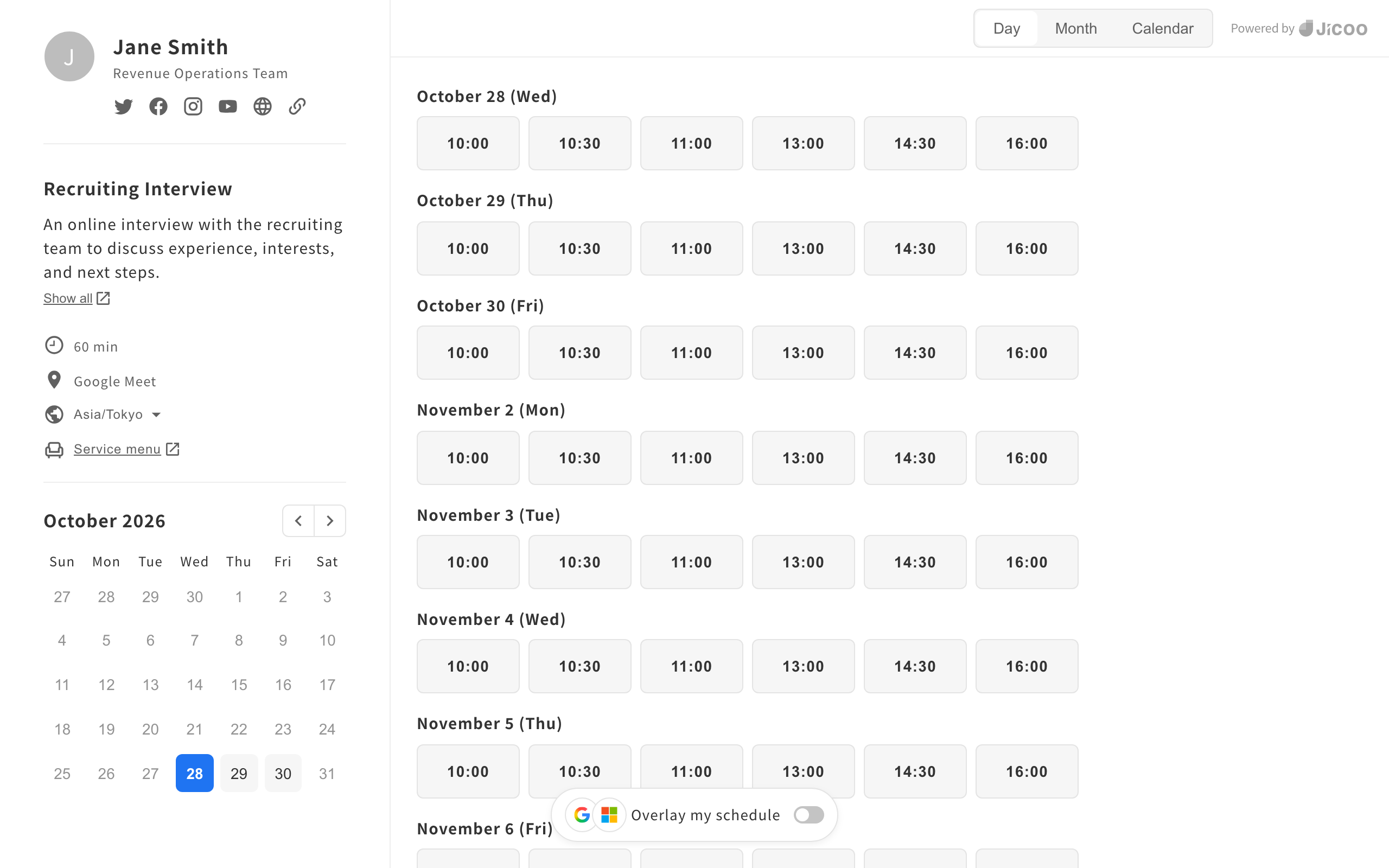
Booking pages, where guests pick a date and time, have a new design. Times are easier to pick, and guests complete their details in a clear step-by-step dialog, which is expected to improve booking conversion rates. The new design applies automatically to booking pages on all plans, and you don't need to change any settings.
What's changed
- Redesigned the Week, Month, Calendar, List, and Day views, and grouped the view switcher into tabs
- Booking page details such as hosts, locations, and time zone now appear together in a side panel on the left
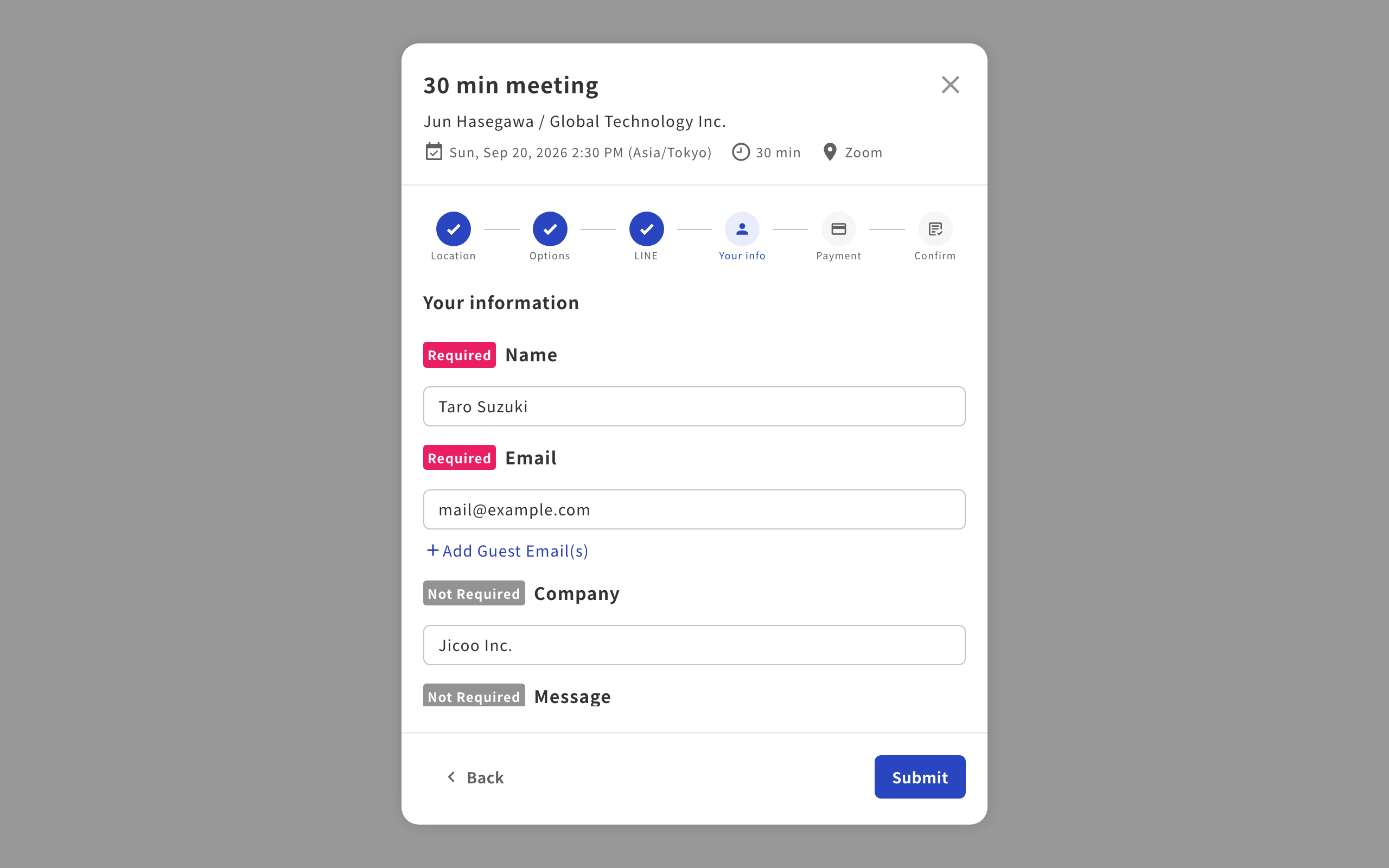
- After choosing a time, guests go through the remaining steps (Location, Options, Your info, Payment, and more) in a dialog that shows which step they are on
- On booking pages with a capacity limit, every view now shows "Full" or "N seats left," and full time slots cannot be selected
- While available times are loading, the booking page's theme color is used
- Applies to public booking pages, one-time links, the reschedule screen, embedded widgets, and booking within forms
Screenshots
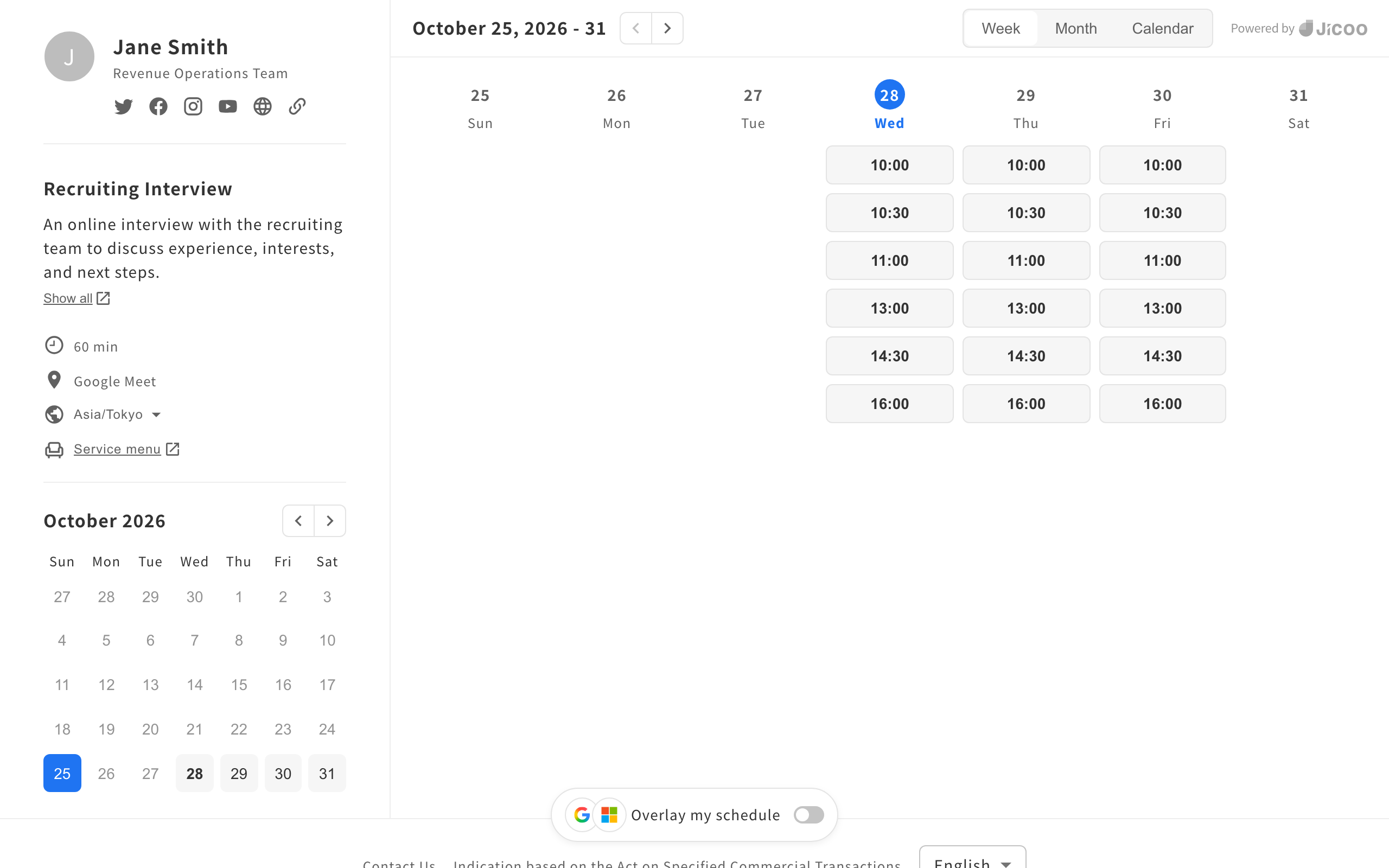
- Week: Shows a week of available times, organized by day
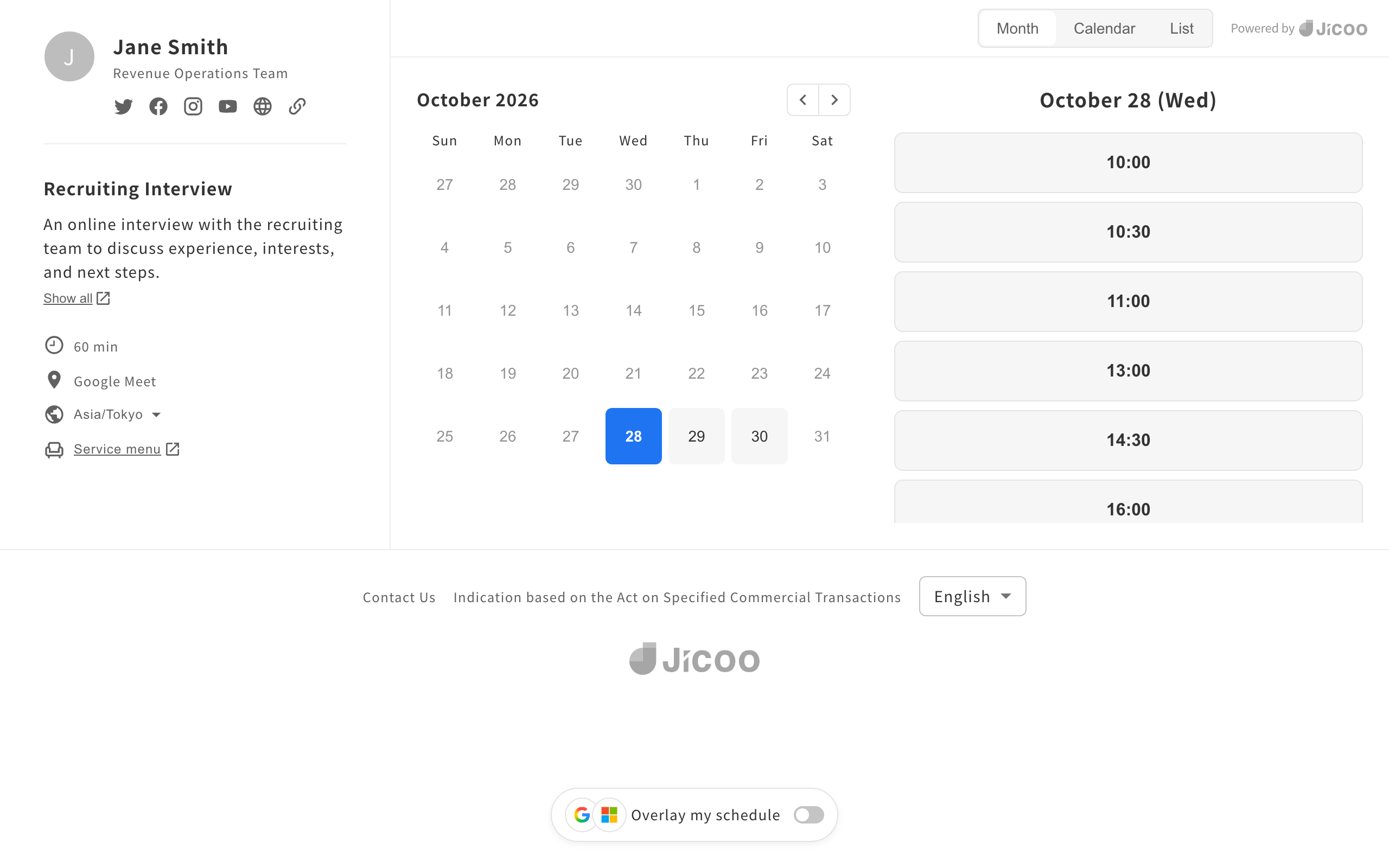
- Month: Pick a date on the monthly calendar to see that day's times on the right
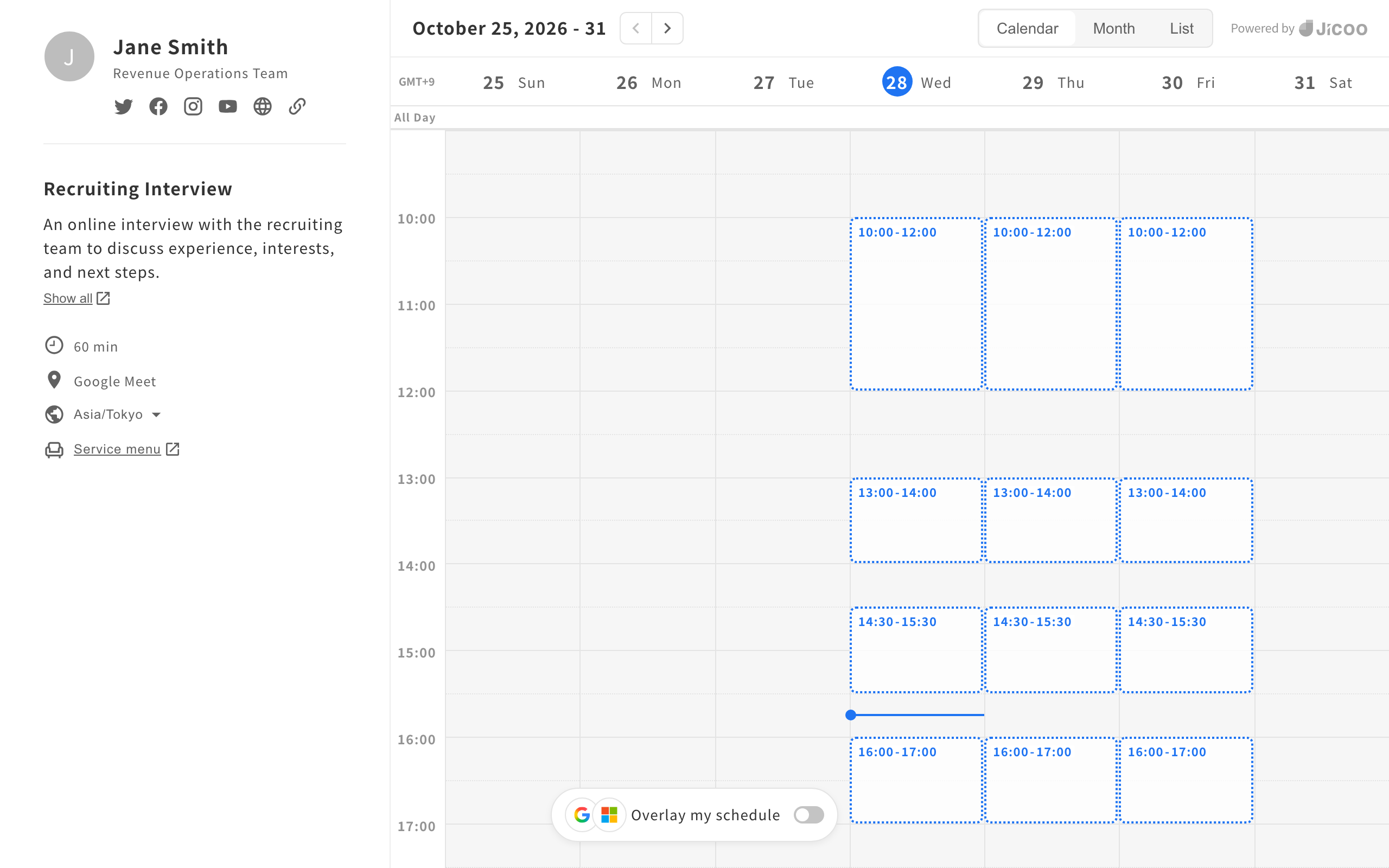
- Calendar: Shows available times on a weekly timetable
- List: Lists time slots by date, and guests book with the Select button
- Day: Shows each date's available times as buttons
- Booking details: After choosing a time, guests enter their details step by step while seeing their progress