
Wed, Nov 4, 2026
Added a Theme setting to choose how available time slots look on booking pages
Highlights
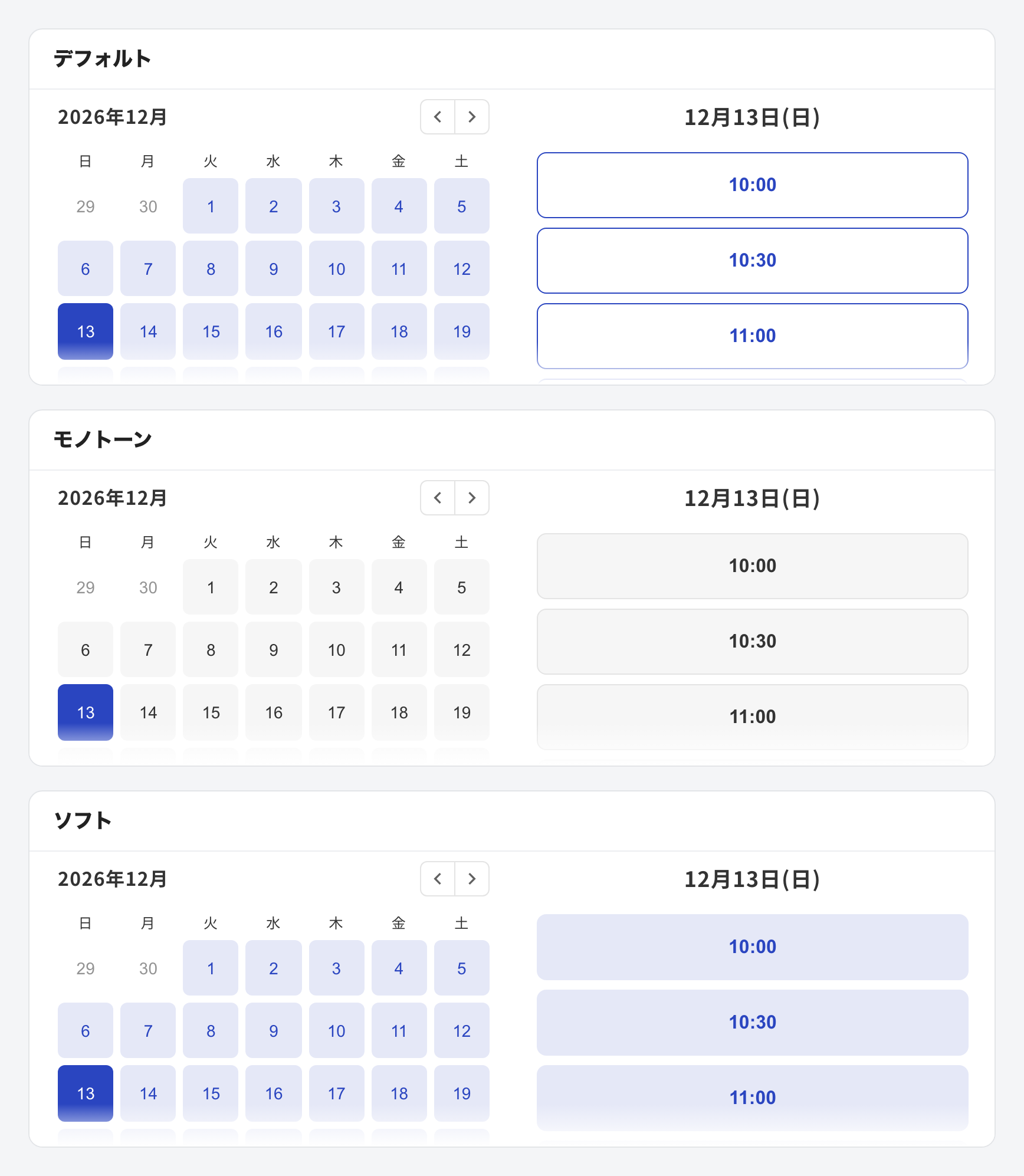
We've updated how available time slots look on booking pages so open times are easier to spot. We've also added a Theme setting to the booking page editor, so you can choose how available time slots appear: "Default," "Monotone," or "Soft."
What's changed
- Added a Theme setting to the booking page editor, with three options:
- Default: Available time slots are shown in white with a border in the theme color
- Monotone: Available time slots are shown in gray, as before
- Soft: Available time slots are shown with a light fill in the theme color
- The thumbnails for Theme and Calendar display setting are drawn in your selected theme color and theme, so you can preview the result as you choose
- Dates where every slot is taken now have lighter date text, making them easier to tell apart from dates with availability
- Border shades are adjusted automatically, so available time slots stay visible even with a light theme color
- Monotone and Soft are available on the Team plan and above (Pro plan and above on legacy pricing plans). On other plans, booking pages are shown with the Default theme. If you upgrade your plan, your selected theme is applied again